Posts mit dem Label wifi werden angezeigt. Alle Posts anzeigen

Sonntag, 5. April 2015

How much wifi connections can a Raspberry Pi allow AND serve simultaneously?

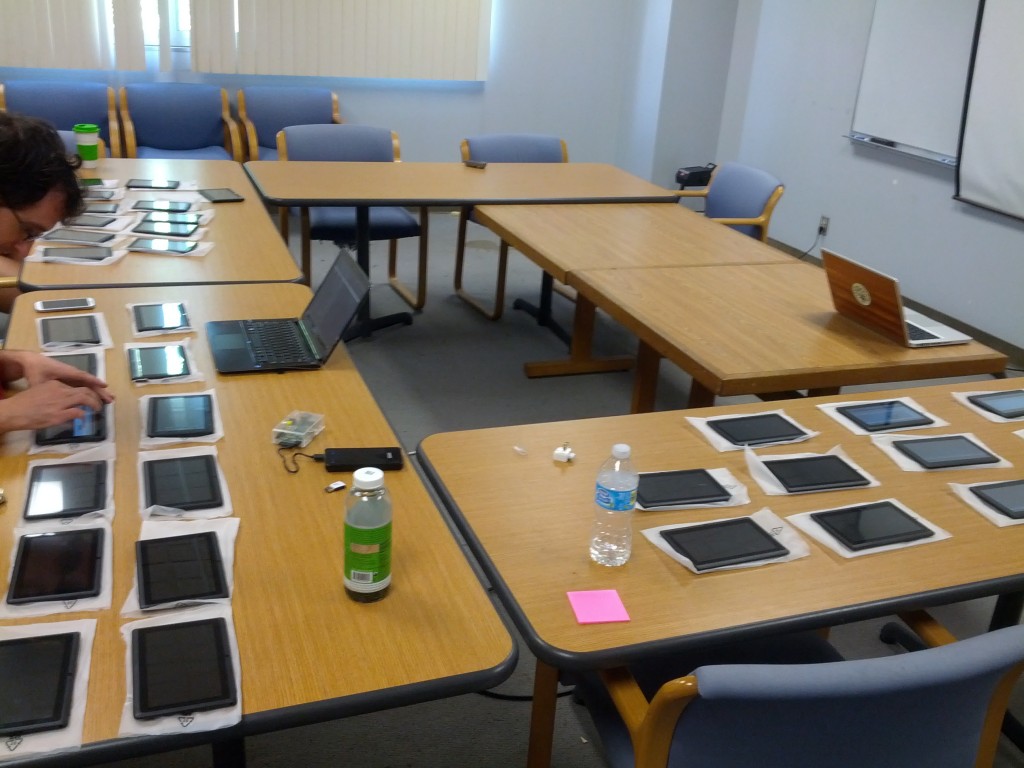
Raspberry Pi (old model; not the Raspberry Pi 2 one) has been practically approved to serve simultaneously a maximum of 35 Android tablets over WiFi, without errors.

---------------------------------------

Look at this:
The result was, as reported there, this:

We were unable to swamp the Pi server or its wireless connection
even with 35 tablets connecting to it simultaneously.

Inexpensive Android devices, which have been proliferating through the developing world, serve as excellent client devices to connect to a Pi access point. How does the Pi hold up to the task of serving a classroom full of tablet users over a single wifi dongle? We had been warned that a small number of wifi clients would likely swamp the connection, so last week we put it to the test.
The Raspberry Pi/Wi-Pi combo held up smoothly, with 35 tablets simultaneously
navigating through the KA Lite web interface and streaming Khan Academy videos.


Sonntag, 29. März 2015

similar sneaker-net approaches:

Similar Sneakernet projects

Information Without Borders - Sneakernet routing software project (GNU free open-source software). Code is available. The description says that people meet at random and trasnfer files, so emails can takes days or weeks. The OLPC Sneakernet can control how long messages take, because the couriers would work to an agreed schedule.
Wikipedia says – “The charity relief organization Information Without Borders is attempting to implement a sneakernet routing protocol for providing cheap Internet access to developing and post-conflict regions using donated PDAs and mobile phones”.

Alternative data-services for remote areas

  • Data delivery by Radio – Radio and broadcast
  • Wi-Fi enabled motorbike - Motoman Article and Discussion pages.
  • Mobile Access Points / Wi-Fi Vehicles - First Mile Solutions - DakNet. They provide a service with data delivery by Mobile Access Points; Wi-Fi enabled motorbikes and buses. They visit villages and transfer data to/from Wi-Fi enabled kiosks. Local people use the kiosks for email, SMS, voicemail, web searches, and other local products and services. The villagers can buy and sell products (medicines, craft-items, seeds, fertilizers, books, cosmetics, music) through the kiosks. The goods are delivered to them on the same vehicles as the data. The website has a good range of DakNet articles and .PDF files which explain the social-background and advantages/disadvantages of real-time versus delayed file delivery services in rural areas (store-and-forward systems). This social-enterprise company was set up by people from MIT to provide low-cost data services, at prices as low as $1 per user per month. ‘Dak’ is a Hindi word for ‘Post’ or ‘Postal’.
  • 2003 MIT article about First Mile Solutions DakNet (.pdf), including the prices and economics of the service (cost of installation, cost per email, etc).
  • Diagram of DakNet
  • United Villages Their website says "United Villages provides villagers in Asia, Africa, and Latin America with a digital identity and access to locally-relevant products and services using our low-cost, store-and-forward "drive-by WiFi" technology. Our Mobile Access Points (MAPs) are installed on existing vehicles (e.g. buses and motorcycles) and automatically provide access for WiFi-enabled Kiosks along the roads."

Freitag, 20. März 2015

What would be the best data mule?

What would be the best data mule?

The best data mule is probably a smartphone packed on a Quadro- /Octocopter. There it could serve as data carrier and at the same time as a GPS navigation machine supporting waypointflights. Unfortunately waypoint flights are mostly forbidden anywhere.

So humans must replace copters and transport data.

Donnerstag, 19. März 2015

VIDEO: Live-Demo Part 3 - How to convert 32GB Raspberry Pi 2 - whezzy - into a standalone WiFi Hotspot (REALTEK / EDIMAX)

This is Part 3: The last steps  - We use a fresh 32GB card with raspbian whezzy.

https://docs.google.com/document/d/16hJS7fnPyKUwbvR33_nMku_b6XcYaBJXVpeCIMoJzcQ/edit?usp=sharing

Those steps are done there:

we forgott this in Part II :( and correct it . Such things happen in real life!

sudo nano /etc/network/interfaces
iface wlan0 inet static
address 10.10.10.10
netmask 255.255.255.0
#iface wlan0 inet manual
#wpa-roam /etc/wpa_supplicant/wpa_supplicant.conf
#iface default inet dhcp


VIDEO: Live-Demo Part 2 - How to convert 32GB Raspberry Pi 2 - whezzy - into a standalone WiFi Hotspot (REALTEK / EDIMAX)

This is Part 2: Making the AP (15 Min) - We use a fresh 32GB card with whezzy installed on..

https://docs.google.com/document/d/16hJS7fnPyKUwbvR33_nMku_b6XcYaBJXVpeCIMoJzcQ/edit?usp=sharing

Those steps are done there:


sudo apt-get install isc-dhcp-server
sudo apt-get autoremove hostapd
wget https://github.com/jenssegers/RTL8188-hostapd/archive/v2.0.tar.gz
tar -zxvf v2.0.tar.gz
cd RTL8188-hostapd-2.0/hostapd
sudo make
sudo make install
sudo service hostapd restart
sudo nano /etc/dhcp/dhcpd.conf
#option domain-name "example.org";
#option domain-name-servers ns1.example.org, ns2.example.org;
authoritative;
subnet 10.10.10.0 netmask 255.255.255.0
{
range 10.10.10.20 10.10.10.80;
option broadcast-address 10.10.10.255;
option routers 10.10.10.1;
default-lease-time 600;
max-lease-time 7200;
option domain-name "local-network";
option domain-name-servers 8.8.8.8, 8.8.4.4;
}
sudo nano /etc/default/isc-dhcp-server
INTERFACES="wlan0"
--> we forgott something.. look Part III. Such things happen in real life :)
sudo nano /etc/sysctl.conf
net.ipv4.ip_forward=1
sudo sh -c "echo 1 > /proc/sys/net/ipv4/ip_forward"
sudo ifup wlan0
sudo iptables -t nat -A POSTROUTING -o eth0 -j MASQUERADE
sudo iptables -A FORWARD -i eth0 -o wlan0 -m state --state RELATED,ESTABLISHED -j ACCEPT
sudo iptables -A FORWARD -i wlan0 -o eth0 -j ACCEPT
sudo service isc-dhcp-server start
sudo service hostapd start
sudo update-rc.d hostapd enable
sudo update-rc.d isc-dhcp-server enable
sudo sh -c "iptables-save > /etc/iptables.ipv4.nat"
sudo nano /etc/network/interfaces
up iptables-restore < /etc/iptables.ipv4.nat
sudo nano /etc/rc.local
sleep 10 && service hostapd restart
sudo reboot

VIDEO: Part 1/3 - How to convert 32GB Raspberry Pi 2 - whezzy - into a standalone WiFi Hotspot (REALTEK / EDIMAX)

This is Part 1: Preparations (15 Min) - We are using here a fresh whezzy system on a 32GB card.

Installation guide:
https://docs.google.com/document/d/16hJS7fnPyKUwbvR33_nMku_b6XcYaBJXVpeCIMoJzcQ/edit?usp=sharing

Those steps are recorded here

sudo bash
sudo apt-get update && sudo apt-get upgrade -f && sudo apt-get dist-upgrade
sudo apt-get clean
sudo apt-get autoremove
sudo apt-get install git
sudo wget https://raw.github.com/Hexxeh/rpi-update/master/rpi-update -O /usr/bin/rpi-update && sudo chmod +x /usr/bin/rpi-update
sudo rpi-update
sudo reboot


cookingbook: converting whezzy raspi 2 into an edimax standalone wifi access point

https://docs.google.com/document/d/16hJS7fnPyKUwbvR33_nMku_b6XcYaBJXVpeCIMoJzcQ/edit?usp=sharing

sudo bash
sudo apt-get update && sudo apt-get upgrade -f && sudo apt-get dist-upgrade
sudo apt-get clean
sudo apt-get autoremove
sudo apt-get install git
sudo wget https://raw.github.com/Hexxeh/rpi-update/master/rpi-update -O /usr/bin/rpi-update && sudo chmod +x /usr/bin/rpi-update
sudo rpi-update
sudo reboot
sudo apt-get install isc-dhcp-server
sudo apt-get autoremove hostapd
wget https://github.com/jenssegers/RTL8188-hostapd/archive/v2.0.tar.gz
tar -zxvf v2.0.tar.gz
cd RTL8188-hostapd-2.0/hostapd
sudo make
sudo make install
sudo service hostapd restart
sudo nano /etc/dhcp/dhcpd.conf
#option domain-name "example.org";
#option domain-name-servers ns1.example.org, ns2.example.org;
authoritative;
subnet 10.10.10.0 netmask 255.255.255.0
{
range 10.10.10.20 10.10.10.80;
option broadcast-address 10.10.10.255;
option routers 10.10.10.1;
default-lease-time 600;
max-lease-time 7200;
option domain-name "local-network";
option domain-name-servers 8.8.8.8, 8.8.4.4;
}
sudo nano /etc/default/isc-dhcp-server
INTERFACES="wlan0"
sudo nano /etc/hostapd/hostapd.conf
sudo nano /etc/sysctl.conf
net.ipv4.ip_forward=1
sudo sh -c "echo 1 > /proc/sys/net/ipv4/ip_forward"
sudo ifup wlan0
sudo iptables -t nat -A POSTROUTING -o eth0 -j MASQUERADE
sudo iptables -A FORWARD -i eth0 -o wlan0 -m state --state RELATED,ESTABLISHED -j ACCEPT
sudo iptables -A FORWARD -i wlan0 -o eth0 -j ACCEPT
sudo service isc-dhcp-server start
sudo service hostapd start
sudo update-rc.d hostapd enable
sudo update-rc.d isc-dhcp-server enable
sudo sh -c "iptables-save > /etc/iptables.ipv4.nat"
sudo nano /etc/network/interfaces
up iptables-restore < /etc/iptables.ipv4.nat
sudo nano /etc/rc.local
sleep 10 && service hostapd restart
sudo reboot

Mittwoch, 18. März 2015

WOW-TO convert a RaspberryPi 2 B into a standalone AP with REALTEK [EDIMAX] CHIP

WOW-TO convert a RaspberryPi 2 B into a standalone AP with REALTEK [EDIMAX] CHIP


Here is a short summary of all the commands (cooking-book like) without any of the comments above. So if you succeeded once, don’t care about comments, just do the essential work now:


sudo bash
sudo apt-get update && sudo apt-get upgrade -f && sudo apt-get dist-upgrade
sudo apt-get clean
sudo apt-get autoremove
sudo apt-get install git
sudo wget https://raw.github.com/Hexxeh/rpi-update/master/rpi-update -O /usr/bin/rpi-update && sudo chmod +x /usr/bin/rpi-update
sudo rpi-update
sudo reboot
sudo apt-get install isc-dhcp-server
sudo apt-get autoremove hostapd
wget https://github.com/jenssegers/RTL8188-hostapd/archive/v2.0.tar.gz
tar -zxvf v2.0.tar.gz
cd RTL8188-hostapd-2.0/hostapd
sudo make
sudo make install
sudo service hostapd restart
sudo nano /etc/dhcp/dhcpd.conf
#option domain-name "example.org";
#option domain-name-servers ns1.example.org, ns2.example.org;
authoritative;
subnet 10.10.10.0 netmask 255.255.255.0
{
range 10.10.10.20 10.10.10.80;
option broadcast-address 10.10.10.255;
option routers 10.10.10.1;
default-lease-time 600;
max-lease-time 7200;
option domain-name "local-network";
option domain-name-servers 8.8.8.8, 8.8.4.4;
}

sudo nano /etc/default/isc-dhcp-server
INTERFACES="wlan0"
sudo nano /etc/network/interfaces
iface wlan0 inet static
address 10.10.10.10
netmask 255.255.255.0
#iface wlan0 inet manual
#wpa-roam /etc/wpa_supplicant/wpa_supplicant.conf
#iface default inet dhcp
sudo nano /etc/sysctl.conf
net.ipv4.ip_forward=1
sudo sh -c "echo 1 > /proc/sys/net/ipv4/ip_forward"
sudo ifup wlan0
sudo iptables -t nat -A POSTROUTING -o eth0 -j MASQUERADE
sudo iptables -A FORWARD -i eth0 -o wlan0 -m state --state RELATED,ESTABLISHED -j ACCEPT
sudo iptables -A FORWARD -i wlan0 -o eth0 -j ACCEPT
sudo service isc-dhcp-server start
sudo service hostapd start
sudo update-rc.d hostapd enable
sudo update-rc.d isc-dhcp-server enable
sudo sh -c "iptables-save > /etc/iptables.ipv4.nat"
sudo nano /etc/network/interfaces
up iptables-restore < /etc/iptables.ipv4.nat
sudo nano /etc/rc.local
sleep 10 && service hostapd restart
sudo reboot